Tracking Conversions with Google Tag Manager in EnrolHQ
EnrolHQ uses JavaScript to handle page views and form submissions without full-page reloads. This means you can’t track conversions with page URLs for sub event types and application and EOI forms. Instead, you can use JavaScript function calls that are set up inside EnrolHQ to trigger when key events occur.
Below is a step-by-step guide to track conversions for:
- Enquiry Submitted
- Application Submitted
- EOI / Scholarship Submitted
- Event Booked
Make sure your GTM container code is correctly installed on your site. If not already, set up your container here https://tagmanager.google.com/
If already set up, find your embed code under Admin > Install Google Tag Manager
You need to insert your embed script into Settings > Custom Scripts. This will be applied to the header of every EnrolHQ page/form.
TIP: The script will look something like the example below where GTM-WG6476253 is replaced with your specific container ID:
We’ll use GTM’s Custom Event Trigger to listen for specific window function calls that happen when the form is submitted successfully.
A. Enquiry Submit Success
- In GTM, go to Triggers → New
- Name: Enquiry Submit Success
- Type: Custom Event
- Event Name: enrolHQOnEnquirySubmitSuccess
- Check “Use regex matching” → Leave it unchecked
- Fire on: All Custom Events
B. Application Submitted
- Create another Trigger
- Name: Application Submitted
- Type: Custom Event
- Event Name: enrolHQOnEnrolmentSubmitSuccess
- Check “Use regex matching” → Leave it unchecked
- Fire on: All Custom Events
C. EOI / Scholarship Submitted
- Create another trigger
- Name: EOI / Scholarship Submitted (relabel to how you are using the form)
- Type: Custom Event
- Event Name: enrolHQOnEOISubmitSuccess
- Check “Use regex matching” → Leave it unchecked
- Fire on: All Custom Events
D. Booking Confirmation
- Create one more Trigger
- Name: Event Booked
- Type: Custom Event
- Event Name: enrolHQOnBookingConfirmation
- Check “Use regex matching” → Leave it unchecked
- Fire on: All Custom Events
You now need to tie each trigger to a tag for the platform you’re using. Here’s an example for Google Ads and Meta.
For Google Ads (e.g., Enquiry Conversion)
- Go to Tags → New
- Name: Google Ads – Enquiry Conversion
- Tag Type: Google Ads Conversion Tracking
- Enter your Conversion ID and Conversion Label
- Trigger: Select Enquiry Submit Success
Repeat for Application Submitted, EOI / Scholarship Submitted and Booking Confirmation, using the respective triggers you have previously setup.
For Meta (Facebook) Pixel
- Tag Type: Custom HTML
- Paste your standard Facebook Pixel Event code, e.g.:
- Trigger: Choose the relevant trigger from Step 2 for each event
- Use GTM’s Preview Mode to test that the correct events fire.
- Submit the form on your live site and confirm that the tags fire.
If your marketing team prefers using dataLayer.push() instead of function names, your developer can modify your custom JS to push to the dataLayer like this:
jsCopyEditwindow.enrolHQOnEnquirySubmitSuccess = function() {
  window.dataLayer = window.dataLayer || [];
  dataLayer.push({ event: 'enrolHQOnEnquirySubmitSuccess' });
}
This way GTM listens for event: enrolHQOnEnquirySubmitSuccess and your Trigger setup stays the same. You are free to add custom javascript into EnrolHQ via Settings > Custom Scripts
Here’s another example:
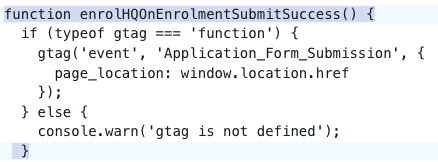
Adjust the code within the function based on your EnrolHQ form name
function enrolHQOnEnrolmentSubmitSuccess() {
  if (typeof gtag === 'function') {
    gtag('event', 'Application_Form_Submission', {
      page_location: window.location.href
    });
  } else {
    console.warn('gtag is not defined');
  }
}
- Conversion tags may take 24 hours to appear in Google Ads reports.
- Meta Pixel events can be verified in Meta’s Event Manager.
- If conversions aren’t firing, double-check spelling and case of the event names.
- For more information: Set up events